> ## Documentation Index
> Fetch the complete documentation index at: https://supermemory-personal-brain-docs.mintlify.site/llms.txt
> Use this file to discover all available pages before exploring further.
# Use Supermemory with Raycast: Save and Search Memories on Mac
> Learn how to use the Supermemory Raycast extension to add and search Personal Brain memories from the Raycast command bar on macOS.
Add and search your memory from the Raycast command bar on Mac.
 ## How the Supermemory Raycast extension works
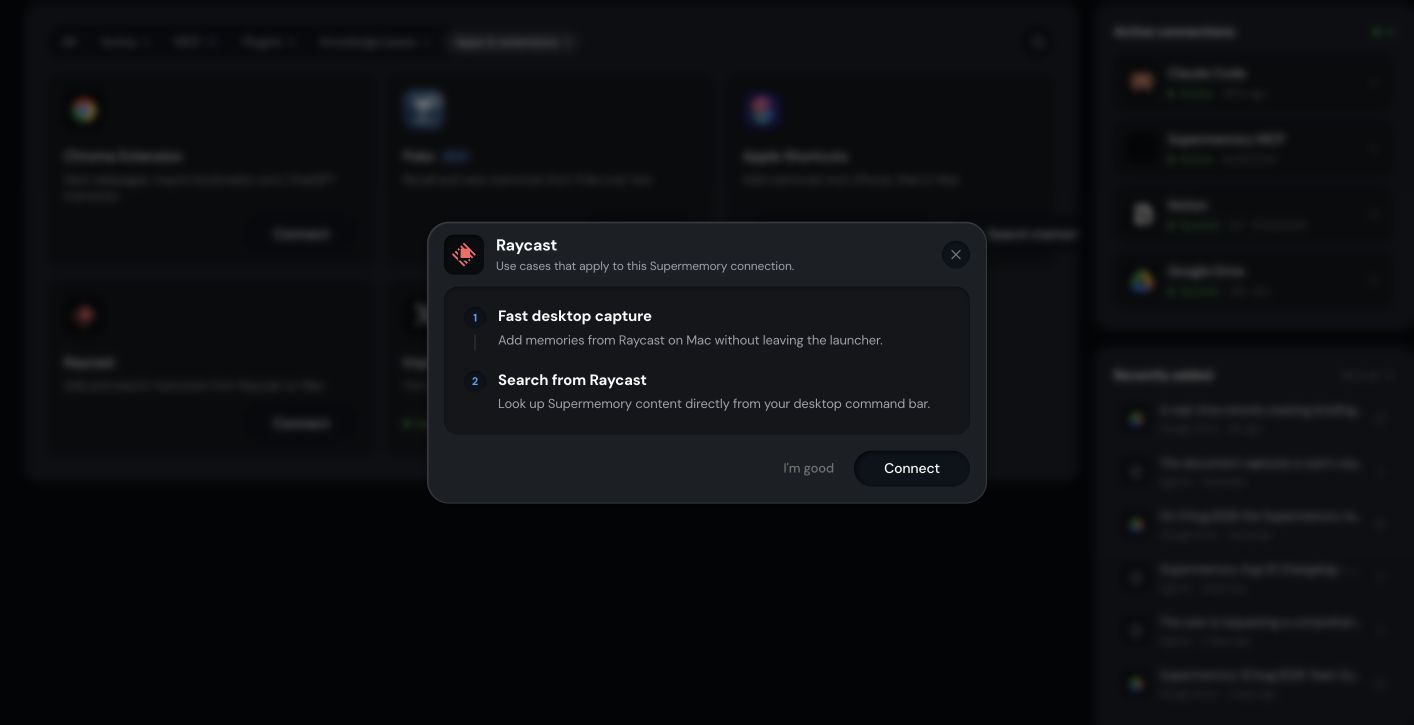
Adds memories from Raycast on Mac and searches Supermemory directly from the desktop command bar.
## Before you start
* A Supermemory account with Personal Brain access
* Signed in at [app.supermemory.ai](https://app.supermemory.ai)
* Raycast installed on macOS
* The active organization and Space you want to use
## How to install and connect the Raycast extension
Go to Integrations and select Raycast.
Install the Supermemory extension from the Raycast store.
Sign in from the extension so Raycast can save and search in your Supermemory account.
Select the Space you want the commands to use.
Run the add and search commands from Raycast to confirm the connection.
## How Raycast talks to Supermemory
Raycast talks to Supermemory through the extension. Add memory sends the input to your active Space. Search memory queries the same Space and shows matches inline.
## What Raycast saves and searches
* Save: text, links, or selections passed to the add command
* Search: your memory in the Space Raycast is pointed at
## Limitations of the Raycast extension
* Raycast runs on macOS. Other launchers are not covered here.
* Commands run against the active Space chosen in the extension. Confirm it before saving or searching.
* Some commands rely on macOS accessibility and clipboard permissions granted to Raycast.
## How to troubleshoot Raycast
* **Commands don't run.** Confirm you're signed in from the extension and the connection status is active.
* **A saved memory did not appear.** Check the active organization and Space, and that processing finished.
* **Search returns nothing.** Confirm the Space matches the one you saved into.
## Related
See every way to save and recall from Personal Brain.
Keep different parts of your memory organized and separate.
## How the Supermemory Raycast extension works
Adds memories from Raycast on Mac and searches Supermemory directly from the desktop command bar.
## Before you start
* A Supermemory account with Personal Brain access
* Signed in at [app.supermemory.ai](https://app.supermemory.ai)
* Raycast installed on macOS
* The active organization and Space you want to use
## How to install and connect the Raycast extension
Go to Integrations and select Raycast.
Install the Supermemory extension from the Raycast store.
Sign in from the extension so Raycast can save and search in your Supermemory account.
Select the Space you want the commands to use.
Run the add and search commands from Raycast to confirm the connection.
## How Raycast talks to Supermemory
Raycast talks to Supermemory through the extension. Add memory sends the input to your active Space. Search memory queries the same Space and shows matches inline.
## What Raycast saves and searches
* Save: text, links, or selections passed to the add command
* Search: your memory in the Space Raycast is pointed at
## Limitations of the Raycast extension
* Raycast runs on macOS. Other launchers are not covered here.
* Commands run against the active Space chosen in the extension. Confirm it before saving or searching.
* Some commands rely on macOS accessibility and clipboard permissions granted to Raycast.
## How to troubleshoot Raycast
* **Commands don't run.** Confirm you're signed in from the extension and the connection status is active.
* **A saved memory did not appear.** Check the active organization and Space, and that processing finished.
* **Search returns nothing.** Confirm the Space matches the one you saved into.
## Related
See every way to save and recall from Personal Brain.
Keep different parts of your memory organized and separate.